Timesheets for contractors
Written By Talenkai
Last updated 23 days ago
Contractors submit time from the employee portal; the desk validates it in Talenkai.
Setup
Candidate exists and placement is under contract.
Admin creates a user with role empleado, linked to that candidate.
Contractor signs in to the portal (not the full CRM).
Contract must be active for the period.
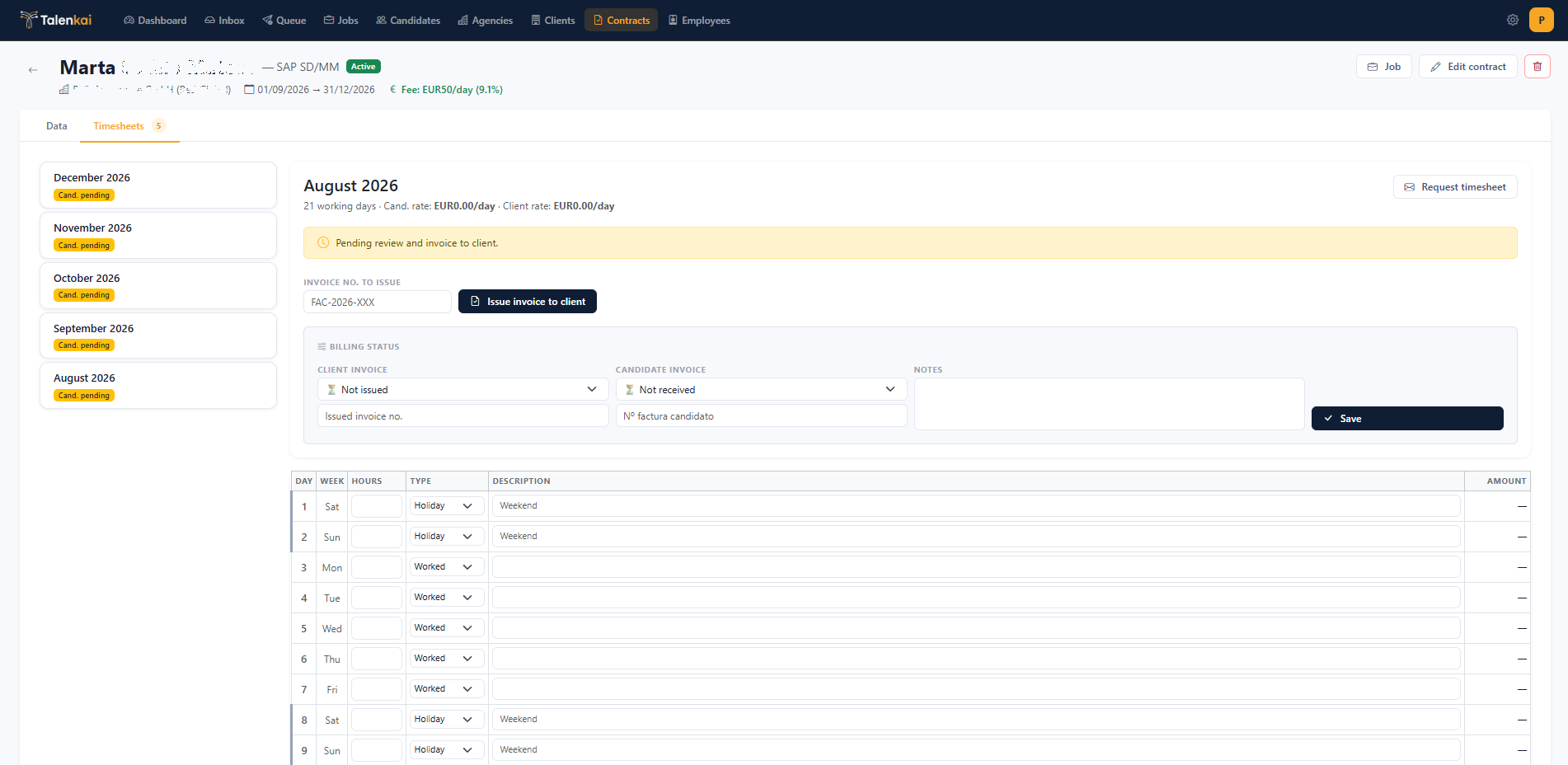
Monthly flow
Period opens (usually calendar month).
Contractor enters days/hours and submits.
Recruiter/admin opens the timesheet in Talenkai.
Validate or send back for correction.
Update billing progress so dashboard fee reflects the truth.
Desk habits
Remind contractors before month-end.
Pending sheets should appear on the dashboard — treat them like overdue follow-ups.
Do not invent hours in the CRM without the contractor’s submission if your process depends on portal evidence.
Access problems
Wrong role (user instead of employee), missing candidate link, inactive user, or no active contract are the usual causes. Fix the user record under Settings → Users.
Related: From won match to contract and timesheet, Roles and permissions.
Still need help? Ask the team