How the AI inbox classifies email
Written By Talenkai
Last updated 23 days ago
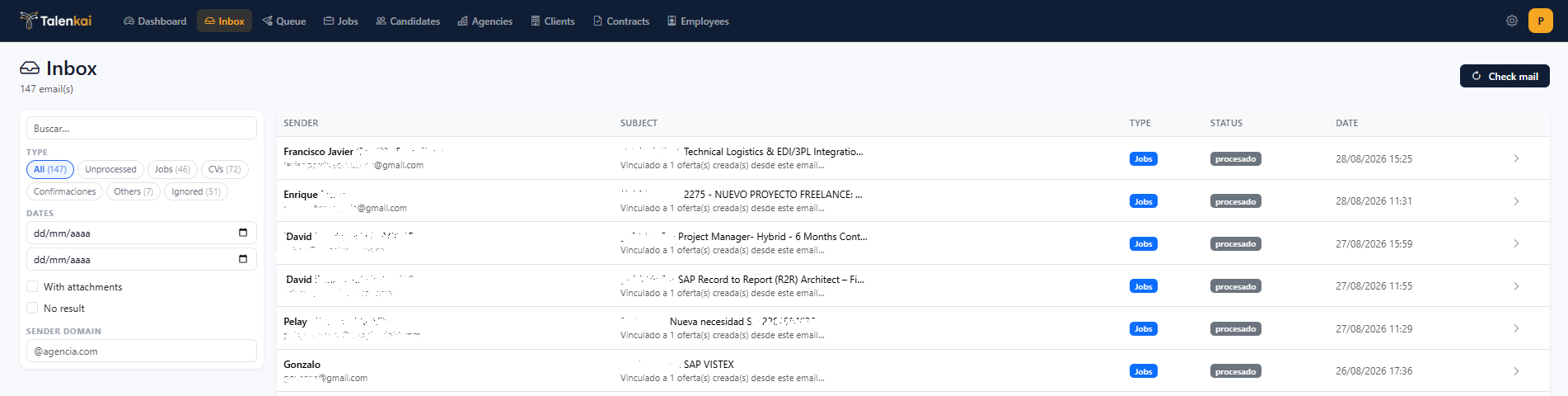
The Inbox is where Talenkai turns raw mailbox traffic into recruiting objects. After IMAP fetch, each message is classified so you spend time on decisions, not on sorting.
Typical classes you will see
CV / candidate — résumé attached or candidate outreach → create or update a candidate, store the CV.
Job / brief — client or agency request → create or enrich a job.
Other / noise — newsletters, bounce messages, unrelated threads — leave them or archive according to your desk rules.
Exact labels in the UI may vary slightly by language; the idea is always: what should this email become in the CRM?
Recommended daily habit
Open Inbox.
Process high-confidence CV and job items first.
Confirm or correct the suggested skill, languages, rate, client/agency when the AI is unsure.
Open the created candidate or job and complete missing fields before matching.
Leave noise out of the pipeline — do not force every email into a candidate.
AI usage
Classification and drafting consume your plan’s AI quota for the month (visible on the dashboard). During trial you can validate the flow; on paid plans, watch the meter if you bulk-process large historical folders.
Tips for better classification
Keep a dedicated recruiting mailbox when possible.
Ask clients to put clear subjects (“Need SAP FI consultant — remote ES”).
After creation, fix main skill and languages on the job/candidate — matching depends on them more than on the raw email text.
Related: Add a candidate, Create a job from a client brief, Review queue.
Still need help? Ask the team