Email templates and send modes (queue vs direct)
Written By Talenkai
Last updated 23 days ago
Outbound mail in Talenkai is controlled under Settings → Email, in three areas:
Connection — IMAP (inbox) + SMTP (outbound)
Send mode — queue vs immediate send, per email type
Templates — subject/body in ES / EN / DE
SMTP must work before direct send or Outbox “Send” can deliver mail.
Send mode: Queue vs Direct
Path: Settings → Email → Send mode
For each email type you choose:
Types you can configure include: first contact, confirmation ack, follow-up, CV reminder, client presentation, interview proposal/confirmation, post-interview, offer/terms, timesheet, free email to candidate/agency/client, and auto post-matching (CV request).
Practical tip: keep sensitive steps (offer, interview, client presentation) on Queue. Use Direct for routine follow-ups or free emails once you trust SMTP.
Save the send-mode form after changes.
Templates (subject & body)
Path: Settings → Email → Templates
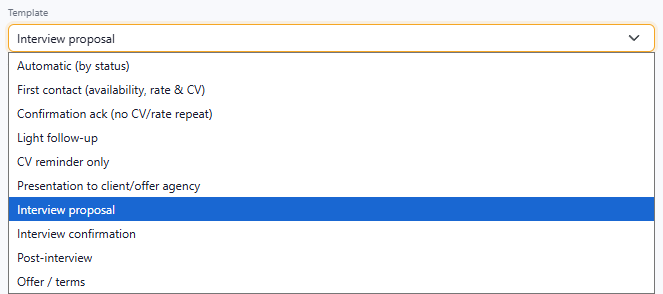
There are 9 pipeline templates, each editable in ES / EN / DE:
First contact (availability, rate & CV)
Confirmation ack (no CV/rate repeat)
Light follow-up
CV reminder only
Presentation to client / offer agency
Interview proposal
Interview confirmation
Post-interview
Offer / terms
How to edit
Pick a template from the list (★ = your company has a custom version).
Edit Subject and Body on the ES / EN / DE tabs.
Save (all three languages must be non-empty).
Revert to standard removes your overrides for that template and restores the system default.
If you never customize a template, Talenkai uses the built-in standard text.
Placeholders (filled from the match/job/candidate):
{{saludo}} {{nombre}} {{skill}} {{ubicacion}} {{modalidad}} {{duracion}} {{tarifa_max}} {{empresa}} {{agencia}} {{cliente}} {{skill_can}} {{descripcion}} {{can_id}} {{oferta_contacto}}
Signature: closing line and signer name are not in the template — they come from the user’s HTML email signature at send time. Edit the signature in the user profile / user settings.
How it fits the daily flow
Generate or draft an email from a match / candidate / free-mail action.
Template text + placeholders produce the draft.
If that type is Queue → approve in Outbox → Send.
If Direct → SMTP runs at once; on failure, recover from Outbox.
Templates change the wording; send mode changes when mail leaves the system. Connection settings change whether SMTP/IMAP can reach the provider.
Checklist
[ ] SMTP host, port, user, password, From name/address saved under Connection
[ ] Send mode set per type (Queue vs Direct)
[ ] Templates customized (or left standard) in ES / EN / DE
[ ] User signature set for the people who send mail
[ ] Test one Queue and one Direct send to a safe address
Related: Connect your mailbox, Review queue, Email stuck in review or not sending.
Still need help? Ask the team